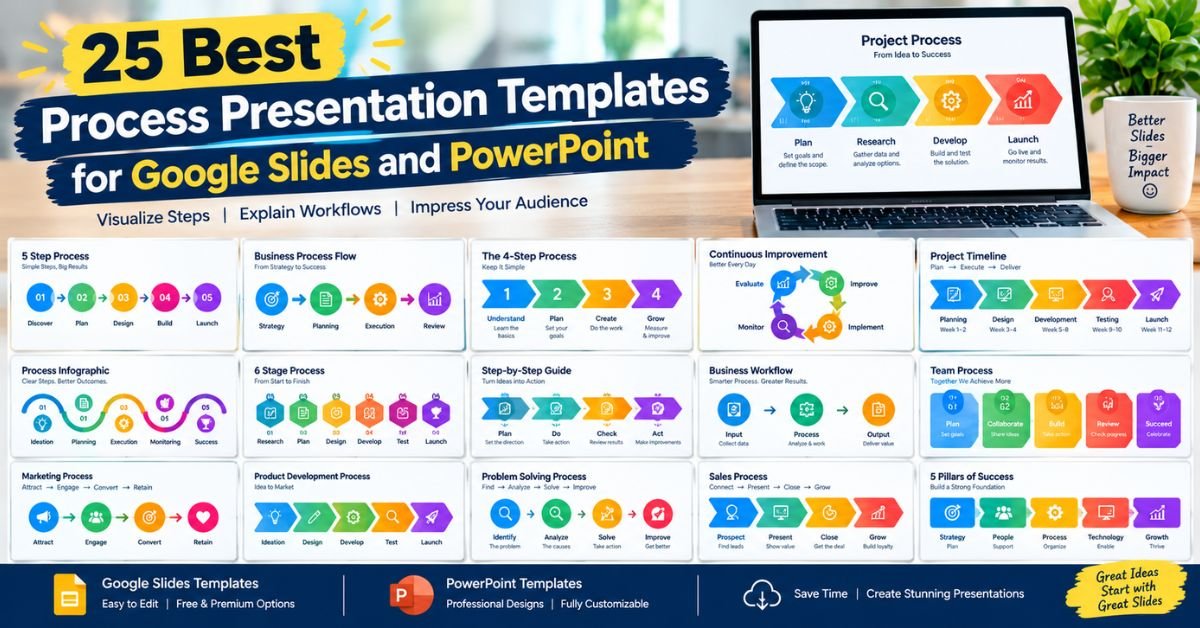
25 Best Process Presentation Templates for Google Slides and PowerPoint

Ever watched a team lose an hour arguing over who does what next? It happens in almost every office. The fix is simple: put the plan on a screen. These 25 process presentation templates turn messy ideas into clear pictures. You get options for Google Slides and Microsoft PowerPoint.
Teachers, managers, students, and scientists can all use them. Inside, you’ll find process PowerPoint templates, Google Slides process templates, and process flowchart templates. You’ll also learn how to pick the right one, build your own deck, and dodge common mistakes. Grab a coffee. Let’s dive in.
Best Process Presentation Templates
Why do visuals beat plain text? Our brains read pictures faster than paragraphs. A good process diagram slide shows the start, the middle, and the end in one glance. Your audience doesn’t need to guess. They follow the arrows. That’s the magic of process visualization. It also supports workflow management because everyone sees the same map. When people share one map, fewer things go wrong.
Read More: 7 Best Free Google Slides Templates Websites for 2026
The list below has ten categories and 25 templates. Eighteen come from the Slidesgo process templates page. Seven are template styles worth searching for in your slide gallery. All of the Slidesgo sets use the 16:9 widescreen format. They work as editable slide layouts, so you can swap text, colors, and icons in minutes. Here’s the full lineup at a glance.
| # | Template | Category | Best for |
| 1 | Process Diagrams | Step-by-step workflows | Sales, project plans, factory steps |
| 2 | Process Infographics | Step-by-step workflows | Flexible all-purpose visuals |
| 3 | Gradient Process Flow Infographics | Step-by-step workflows | Decision-heavy topics |
| 4 | Business Process Infographics | Business process | Color-coded phases |
| 5 | Business Process Re-engineering Infographics | Business process | Workflow improvement |
| 6 | Change Management Process Flow Diagrams for Business | Business process | Rolling out change |
| 7 | Strategic Roadmap Infographics | Project management | Milestone planning |
| 8 | Change Management Process Flow Diagrams for a Business Plan | Project management | Pitching a plan |
| 9 | Agile Infographics | Project management | Tables and budget visuals |
| 10 | Arrow Infographics | Workflow | Guiding the eye |
| 11 | List Infographics | Workflow | Quick takeaways |
| 12 | Process Costing Infographics | Manufacturing | Costing mass production |
| 13 | Industrial Processes Class for College Infographics | Manufacturing | Teaching logistics |
| 14 | Scientific method steps (style to search) | Scientific | Research stages |
| 15 | Lab workflow (style to search) | Scientific | Experiment routines |
| 16 | Storytelling Infographics | Educational | Classroom talks |
| 17 | Lesson steps (style to search) | Educational | Teaching sequences |
| 18 | Basic flowchart (style to search) | Flowchart | Simple sequences |
| 19 | Swimlane flowchart (style to search) | Flowchart | Cross-team handoffs |
| 20 | Decision tree (style to search) | Flowchart | Yes/no choices |
| 21 | Strategic Alignment Infographics | Operations | Aligning goals |
| 22 | Scenario Planning Infographics | Operations | Comparing outcomes |
| 23 | Creative Process Infographics | Product development | Idea to launch |
| 24 | Business Innovation Process Infographics | Product development | Turning ideas into products |
| 25 | Product launch roadmap (style to search) | Product development | Go-to-market plans |
1. Process Presentation Template for Step-by-Step Workflows
Start here if you want a clean, step-by-step presentation template. Process Diagrams are the classic pick. They break a sales pipeline, a project plan, or a factory routine into clear, sequential steps, so every team member knows what comes next. Process Infographics offer a flexible base. Think of them as a blank canvas with the lines already drawn. You add the words.
Gradient Process Flow Infographics bring color to the party. Their purple and orange gradients suit topics full of choices, like career paths or customer journeys. Each choice opens new doors, and the visuals show that endless flow nicely. For example, a trainer could use the gradient set to explain how a support ticket moves from “new” to “solved.” These process infographic templates also work well for step-by-step process presentation examples in training sessions. Because they’re customizable workflow slides, you can add or remove stages without breaking the design.
2. Business Process Presentation Template
A strong business process presentation needs clarity above all. Business Process Infographics give each phase its own color, so nothing blurs together. You’ll find timelines, cycle diagrams, and table layouts inside, which makes this set a treasure chest for business workflow templates. Business Process Re-engineering Infographics go one step further. Re-engineering means studying how work flows and then improving it. The set’s designs cover steps, phases, and workflows, so they fit a process improvement presentation perfectly.
Change Management Process Flow Diagrams for Business show how a change rolls out across reports, customer profiles, brainstorming sessions, and sales. Imagine a retail chain switching to a new checkout system. These slides can show each store’s rollout date, the training phase, and the final review. They also work as professional business process presentation designs for boardroom meetings. Add your logo and brand colors. Your deck will look polished in no time.
Read More: Best Presentation Remote in 2026: Clicker vs. Air Mouse vs. Smart TV Remote vs. Smartphone App
3. Project Management Process Presentation Template
Projects fail when people lose sight of the path. That’s where project management presentation templates shine. Strategic Roadmap Infographics place project milestones in order, so your audience can picture the whole journey from kickoff to delivery. Change Management Process Flow Diagrams for a Business Plan frame your operation around the plan itself. They highlight the essential parts and keep the message tidy. Use them when you pitch a venture to investors.
Agile Infographics offer flexible tables and visuals for budgets or yearly sales. The listing doesn’t focus on agile methods themselves, so treat this set as a general toolkit. These are handy project workflow slides and timeline presentation templates. They also support project planning and workflow presentation slides for weekly team updates. Add task dependencies to show which job must finish before another can start. That small detail prevents plenty of headaches.
4. Workflow Presentation Template
Good workflow presentation templates guide the eye without shouting. Arrow Infographics do this beautifully. Arrows push the viewer from one point to the next, so your message reads faster. They’re ideal for process flow diagrams that show how a request travels between desks. List Infographics take a calmer approach. They turn dense points into tidy, eye-catching lists.
Use them for quick takeaways at the end of a talk. Picture a manager explaining a new approval path. Arrows show the route. A list slide then sums up the three rules to remember. Together, they form workflow templates for team presentations that feel light and clear. They also fit task management talks, where short labels matter more than long sentences. Pair them with simple icons for extra punch.
5. Manufacturing Process Presentation Template
Factories run on repeatable steps. Showing those steps takes careful design. Process Costing Infographics suit companies that make many similar units. Think bottles, bricks, or breakfast cereal. The graphics show how costs flow through each stage, which helps finance and operations teams talk the same language. Industrial Processes Class for College Infographics cover mass production, batch processing, workflow, and logistics.
Teachers use them to help students picture how goods move from raw material to finished product. These work well as manufacturing process slides and manufacturing process presentation examples. They also support quality management talks. For instance, you can mark the checkpoints where inspectors catch defects. Add standard operating procedures to a final slide so new workers know the rules. Clear visuals cut training time. They also reduce costly errors.
6. Scientific Process Presentation Template
Science needs order. A scientific process presentation template shows how a question becomes a result. Look for a scientific method set with stages like question, hypothesis, experiment, data, and conclusion. A second style to hunt for is a lab workflow template. It tracks each routine, such as preparing samples, running tests, and recording results.
These are great templates for presenting a scientific process at school fairs or research meetings. They support data visualization too. Add a small chart beside each stage to show your findings. A cycle layout works well here because science often repeats. You test, learn, and test again. Strong process documentation also helps other labs repeat your work. That’s how trust grows in research. Keep colors calm and labels short. Your audience will thank you.
7. Educational Process Presentation Template
Teachers juggle a lot. Educational process presentation templates save them precious time. Storytelling Infographics mix graphs, tables, and other resources built with education in mind. You can use them alone or blend them into another deck. They share information in an orderly, memorable way.
A second style to search for is a lesson steps template. It lays out a class from warm-up to wrap-up. These are excellent process presentation templates for students too. Pupils can use them to explain a science project or a history timeline. Here’s a simple example. A teacher shows how a bill becomes law in five slides. Each slide gets one arrow and one short sentence. Students remember the sequence far better. That’s infographic design doing real work in the classroom.
8. Process Flowchart Presentation Template
Flowcharts are the old reliable of process mapping. A process flowchart presentation template uses boxes, diamonds, and arrows to show every move. Start with a basic flowchart for simple sequences. Move to a swimlane flowchart when several teams share a job. Each lane belongs to one team, so handoffs become obvious. Finish with a decision tree for yes/no choices.
These decision-making flowchart slides help staff pick the right path fast. Search for them as business workflow diagrams for PowerPoint or process flowchart templates for presentations. They also make good business process flowchart Google Slides templates. Keep each chart small enough to read from the back of a room. If a chart grows huge, split it into two slides. Clarity always wins over cleverness.
| Flowchart style | Best use | Key shape |
| Basic flowchart | Simple, linear tasks | Rectangles with arrows |
| Swimlane flowchart | Work shared by teams | Horizontal or vertical lanes |
| Decision tree | Choices with yes/no results | Diamonds and branches |
9. Business Operations Process Presentation Template
Daily operations need a shared direction. Strategic Alignment Infographics help you line up company goals with each department’s goals. Everyone then pulls the same rope. The set also helps you separate the different levels of the business. Scenario Planning Infographics tackle the “what if” questions. They use arrows, banners, timelines, and tables to lay out each possibility.
Your colleagues can then choose a course and plan around it. These are visual templates for business operations and strong choices for any operational process presentation. They also support business operations reviews and implementation strategy talks. Try this: show three scenarios side by side. Label them best case, expected case, and worst case. Add one action per scenario. Decisions become much easier.
10. Product Development Process Presentation Template
Great products follow a path. Creative Process Infographics map it from ideation to research, design, development, and launch. Each stage gets its own visual, so designers and makers feel at home. Business Innovation Process Infographics focus on turning an idea into a new or improved product that lifts sales. They organize the many processes involved. A third style to search for is a product launch roadmap.
It covers the final stretch from prototype to market. Use these as process cycle diagrams to show the process lifecycle of a product. They also work as process cycle diagram presentation templates for team reviews. Imagine a start-up building a fitness app. One slide shows research. The next shows design. A final slide shows launch dates. Investors can follow the story without confusion.
How to Choose the Best Process Presentation Template
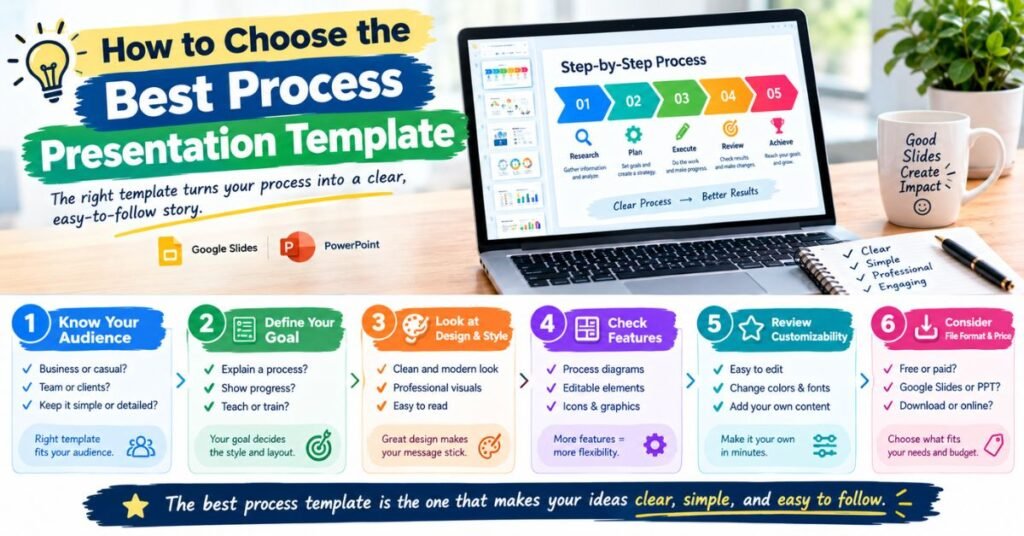
Picking the wrong template costs time. You might fight with layouts for hours. Worse, your audience might feel lost. A good choice does the opposite. It fades into the background while your message shines. Think of a template as a stage. A bad stage distracts the actor. A good one makes the performance easy to follow.
Here’s a simple rule. Match the template to the goal first. Then match it to your style. Don’t fall for pretty colors if the structure doesn’t fit your content. A swimlane chart can’t rescue a talk about a single linear task. Likewise, a simple arrow set can’t handle ten teams. Ask what you need to explain. Then pick the layout that does it best.
Consider Your Presentation Goals and Audience
Start with your goal. Do you want to teach, persuade, or report? A teaching deck needs more detail and a gentler pace. A pitch deck needs fewer words and bigger ideas. Executives often want a high-level view. They care about results, risks, and next steps. Students and new hires usually want every step spelled out.
Consider your viewers’ background too. A worldwide audience may include many non-native English speakers, so use short labels and clear icons. For example, a quarterly review for managers might use business process management visuals with only five boxes. A training session for new staff might use fifteen small boxes with notes. Same topic. Different goal. Different template.
Choose Between Google Slides and PowerPoint Templates
Both tools are excellent. Your choice depends on how you work. Google Slides shines for team collaboration. Several people can edit the same deck at once, and changes save automatically. Microsoft PowerPoint offers rich offline features and advanced animation. It suits big files and polished stage shows.
Good news: many sets, including the Slidesgo ones, come in both formats. You can also export between the two, though fonts and effects may shift a little. Test your slides after you convert them. Here’s a quick comparison.
| Feature | Google Slides | Microsoft PowerPoint |
| Real-time teamwork | Excellent | Good with cloud storage |
| Offline use | Limited | Strong |
| Animations | Basic | Advanced |
| Cost | Free with a Google account | Paid or part of a Microsoft 365 plan |
| Best for | Group projects, remote teams | Formal talks, complex decks |
Look for Editable Process Diagrams and Flowcharts
A template is only useful if you can change it. Look for editable process diagrams with real shapes rather than flat pictures. You should be able to resize arrows, swap icons, and recolor boxes. Check that fonts are common ones, so your deck looks right on any computer.
Good process diagram templates with editable shapes also keep spacing tidy when you add text. Test one slide before you commit. Type a long sentence and see what happens. If the layout collapses, move on. Also check for customizable process infographic slides with extra layouts. More layouts mean more flexibility later. Here’s a quick checklist.
| What to check | Why it matters |
| Vector shapes | They resize without blur |
| Theme colors | One click changes the whole deck |
| Icon packs | Saves a trip to another website |
| Multiple layouts | Gives you room to grow |
| Notes area | Helps you rehearse your talk |
How to Create a Process Presentation
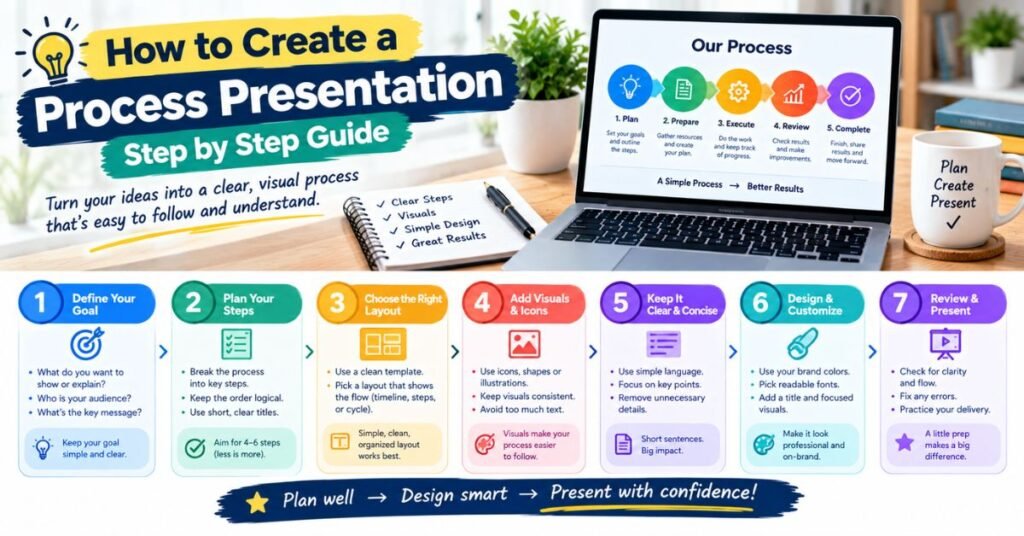
Building a process presentation is easier than it sounds. You don’t need design skills. You need a plan. Start with the story, then choose the visuals. A template handles the looks. You handle the meaning. Many people flip this order and get stuck. They pick a pretty theme before they know what to say. Avoid that trap.
The method has three parts. First, write down the steps. Second, pick the right visuals. Third, trim everything until it’s easy to follow. This works for a class report or a company launch. As a famous line often credited to quality expert W. Edwards Deming puts it, if you can’t describe what you do as a process, you don’t know what you’re doing. Let that idea guide you.
Outline Each Step in the Process
Open a blank page before you open any slides. Write every step in plain words. Think of a cooking recipe. You list the ingredients. Then you list the actions in order. Do the same for your topic. Number each step. Add who does it, what they need, and how long it takes. Next, look for gaps and repeats.
This is called process analysis. It often reveals hidden problems. Perhaps two people do the same task. Perhaps a step has no owner. Fix these now. Then group steps into three to seven stages, since slides get crowded after that. This outline becomes your process mapping presentation and your first draft of process documentation.
Use Flowcharts and Visual Elements
Now match each part of the outline to a visual. Use arrows for sequential steps. Use a cycle for work that repeats. Use a timeline for dates. Use a table for comparisons. Use a decision tree when choices lead to different paths. This keeps presentation graphics purposeful. Add icons to make labels pop.
Keep one color for each stage so viewers can track progress. A consistent look makes complex ideas feel simple. Strong data visualization also helps. A small bar chart beside a step can show how long it takes. That’s far clearer than a paragraph of numbers. Keep every shape lined up and evenly spaced. Tidy slides look trustworthy.
Keep Your Slides Clear and Easy to Follow
Less is more. Give each slide one idea. Use short labels of three to six words. Put the longer explanation in your voice, not on the slide. Choose two fonts at most. Keep text big enough to read from the back row. Leave white space around shapes. It gives the eye a place to rest. Then rehearse out loud.
Do you stumble on a slide? Simplify it. Do you rush through another? Perhaps it holds too much. Ask a friend to watch and explain the process back to you. If they can, your slides work. If not, edit again. Small tweaks make a big difference.
Benefits of Using Process Presentation Templates
Templates save time. You skip the blank-page stress and start with a working design. That frees you to focus on content. They also keep your look consistent. Fonts, colors, and spacing stay matched across every slide.
Your deck feels professional even if you’ve never studied design. Beginners especially enjoy this boost. Templates also make complex ideas easier to share. A strong set of process infographic templates can turn a confusing procedure into a simple picture.
Teams gain too. Shared visuals improve organizational workflows because everyone sees the same steps. Templates support continuous improvement by making it easy to update a diagram as things change.
They help with process optimization talks, where you compare “before” and “after.” They also help with workflow automation planning, since you can spot repetitive steps worth automating. Finally, they build confidence. When your slides look sharp, you speak with more ease.
| Benefit | What it means for you |
| Speed | Finish decks in less time |
| Consistency | Every slide matches |
| Clarity | Complex steps become simple |
| Teamwork | Shared visuals reduce confusion |
| Flexibility | Update diagrams as plans change |
Case study (example scenario): Picture a small bakery with six staff. Orders kept arriving late. The owner built a five-slide deck using a swimlane flowchart. One lane showed the front counter. Another showed the kitchen. A third showed delivery. The team saw that orders sat on a desk for twenty minutes. They added a simple handoff step. Delays dropped within weeks. The lesson is clear. A picture can reveal what words hide.
Frequently Asked Questions
What Is a Process Presentation?
A process presentation explains how something works from start to finish. It shows the steps, the order, and the people or tools involved. Examples include how to onboard a new hire, how a vaccine is made, or how a customer order gets shipped.
It usually relies on diagrams, flowcharts, and timelines rather than long paragraphs. The goal is simple: help your audience understand, remember, and repeat the process. A good one also shows where problems might appear. That makes it a handy tool for quality management and business process management.
Where Can You Find Free Process Presentation Templates?
You can find free process presentation templates for Google Slides and PowerPoint on Slidesgo, which offers sets for both tools. Google Slides and PowerPoint also have built-in galleries. Many teachers and designers share templates online too. Always read the license terms before you use or share a template.
Some require credit to the creator. Others limit commercial use. Check the details first, so you stay on the safe side. If you need something special, search with clear phrases like “process cycle diagram for Google Slides” or “business workflow diagrams for PowerPoint.”
Can You Edit Process Presentation Templates in Google Slides and PowerPoint?
Yes, you can. Most templates are built as editable slide layouts. You can change text, resize shapes, recolor diagrams, and move icons. You can also add new slides by duplicating existing ones.
In Google Slides, open the file and start typing. In PowerPoint, download the file and open it in the app. Some templates use special fonts. Install them first so your deck looks right. If a font is missing, the program swaps it for another. That can shift your layout. Always preview your slides in presentation mode before you share them.
Conclusion
You’ve now seen 25 process presentation templates across ten categories. You met general workflow presentation templates, business process presentation sets, and project management presentation templates.
You also saw tools for manufacturing process slides, science talks, classrooms, flowcharts, operations, and product launches. Each one turns a tangled idea into a clear picture. Remember the key steps. Know your goal and audience. Pick Google Slides or PowerPoint. Check that the diagrams are editable.

StyleXMag Editorial Team shares the latest haircut and hairstyle ideas, from modern fades and comb overs to curly, long, slick-back, and face-shape styles. Our goal is to make finding your next look simple, useful, and inspiring.