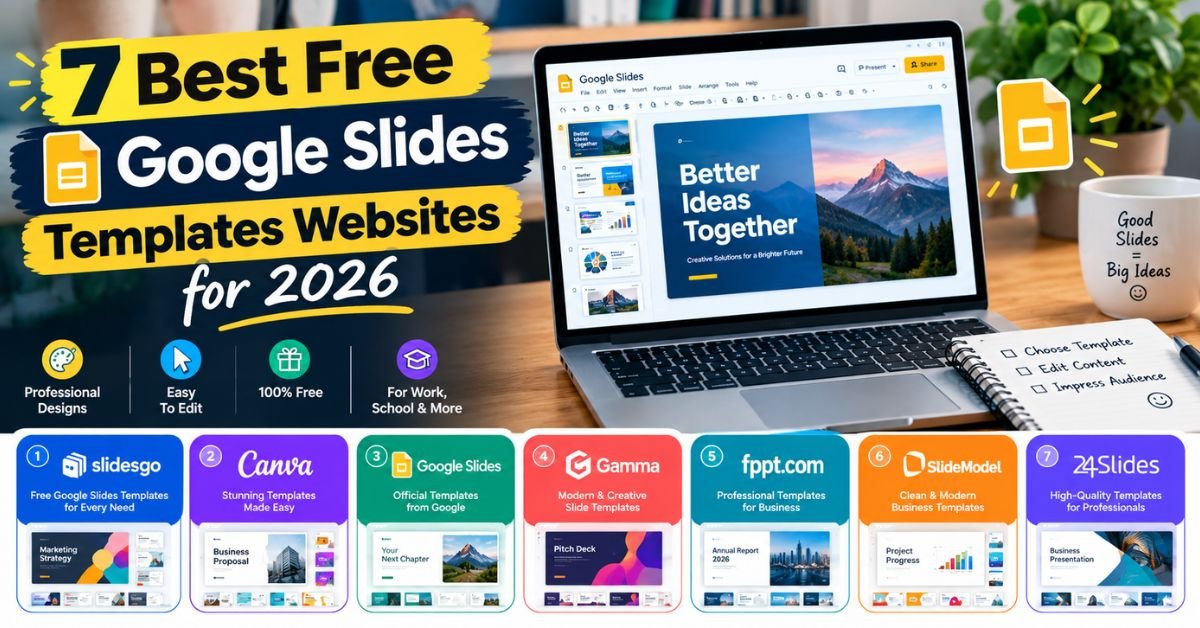
7 Best Free Google Slides Templates Websites for 2026

It’s midnight. Your deadline is close. A blank white slide stares back at you. Sound familiar? Good news: you don’t need to start from zero. The best free Google Slides templates websites hand you ready-made presentation slides in minutes. You pick a design, add your words, and you’re done. These sites also help you find websites to download free Google Slides templates that look sharp and modern. Still, even the prettiest layout can’t save a wall of text. Strong presentation design starts with short words and clear ideas.
This guide covers where to find free Google Slides templates and how to pick the right one. You’ll meet seven sites that offer free presentation templates, editable Google Slides templates, and downloadable Google Slides templates. You’ll also learn how to choose a presentation template and whether free options are worth your time. Whether you’re a student, a teacher, a marketer or a founder, there’s something here for you. Grab a coffee and let’s dive in.
Best Free Google Slides Templates
Google has a built-in Template Gallery inside Google Slides. It’s handy and free. However, most designs feel plain, too niche or a bit dated. That’s why smart users look elsewhere for free Google Slides templates with more flair. Outside sites offer creative Google Slides designs, bold color schemes and fresh slide layouts.
Many also include infographics, icons and charts and diagrams you can edit in seconds. These are the best sites for Google Slides themes that you can use today without a Google Slides templates without a subscription worry.
Read More: Best Presentation Remote in 2026: Clicker vs. Air Mouse vs. Smart TV Remote vs. Smartphone App
This list weighs four things: variety, design quality, ease of use and license terms. Each site below offers websites offering ready-made slide decks in different styles. Some are playful and some are formal. So browse each one and match the style to your brand voice. Here’s a quick snapshot before we dig deeper.
| Website | Best For | File Type | Credit Needed? |
| SlidesMania | Teachers, students, creative decks | Google Slides and PowerPoint | Check each template |
| SlidesCarnival | Business and tech talks | Google Slides and PowerPoint | Yes |
| HiSlide | Marketing and startups | PowerPoint download | Yes |
| Slidesgo | Topic-based and data-rich decks | Google Slides and PowerPoint | Yes on free plan |
| Behance | One-of-a-kind designs | Varies by designer | Varies |
| Canva | Beginners and quick results | Online editor, PowerPoint export | No for free assets |
| Google Template Gallery | Fast, simple decks | Native Google Slides | No |
1. SlidesMania – Creative Google Slides Templates
SlidesMania is a friendly home for creative Google Slides designs and free PowerPoint templates. Its themes carry labels like formal, fun and simple. That makes browsing easy. You’ll also find planners, choice boards and interactive files that work well as teacher resources. To use one, sign in to your Google account first. Next, open the template page and click the yellow Open in Google Slides button. Then press the blue Use Template button in the top-right corner.
After that, you can start template customization right away. Top picks include Thena, a pastel geometric theme that looks like stained glass. Howard adds drop shadows and a pop of blue. Quinn wraps a soft gradient around a classic serif font. Groovy brings 1970s swirls in orange, yellow and purple. These suit classroom presentations, student projects and free Google Slides templates for students. They’re also perfect creative templates for school projects. Just don’t let a bold design drown out your message. Lower the saturation or add white space when needed.
2. SlidesCarnival – Free Google Slides Themes and Templates
SlidesCarnival adds new designs every month. So it’s worth a bookmark. The site offers Google Slides theme templates and free slideshow templates for personal and commercial use. All it asks is a credit to the creator.
To get started, sign in to Google and open your chosen template. Click the yellow Google Slides button and choose Make a copy. The file then lands in your Drive. Want different color schemes? Go to View > Theme Builder > Colors and change the palette in the right-hand menu. That’s how to customize Google Slides themes in under a minute.
Roderigo is a purple line-art theme with 25 slides, device mock-ups and handy icons. Warwick is a blue and green stripe design that includes graphs, tables, 80 icons and a world map. Cymbeline is a minimalist presentation template in black, grey and white with circular shapes. These work well as professional templates for work presentations and business presentation templates. They also suit modern templates for business meetings.
3. HiSlide – Professional Google Slides Templates
HiSlide focuses on professional presentation templates for marketing, business and advertising. At the time of the source article, it offered 42 free templates. The designs look polished. However, getting them into Slides takes extra steps. The files arrive as downloadable presentation designs in PowerPoint format. So you must register, unzip the folder and upload the file to Google Drive. Then open it with Google Slides. Good PowerPoint compatibility helps here, but always check every slide afterward. You must also credit HiSlide when you use the free files.
The layouts hold lots of text boxes. Delete most of them. Your audience can’t read and listen at once. Nature Green is a leafy theme that fits talks on the environment. The Startup Pitch Deck is one of the better pitch deck templates for investor meetings. It uses bold icons, colored titles and speech bubbles. Check the contrast on a few slides though. Light text on a light background is hard to read. These themes shine for marketing presentations and Google Slides templates for business presentations.
Read More: QuikConsole.com: Features, Benefits, and How the Platform Works
4. Slidesgo – Modern Google Slides Themes and Designs
Slidesgo sorts its library by category. You’ll see Education, Business, Marketing, Medical and Infographics. You can also search by tags such as culture, architecture or animal. That makes it one of the best Google Slides themes hubs for presentation templates for different industries. Its modern presentation slides feel clean and current.
Many are educational presentation templates, so they work for free Google Slides templates for teachers. The Bridge Construction & Architecture template uses illustrated motifs inspired by modern design. It’s built for an academic architecture talk. So it’s a poor fit for a science class. Still, the style is lovely. The Sales Planning Process Infographic template packs 32 layouts.
It’s full of charts and diagrams that you can recolor to match your brand. That makes it ideal for professional Google Slides templates for business and data-heavy business presentations. Slidesgo also offers many creative and modern Google Slides themes. Free plans usually require credit, so read the license terms before you share your work.
5. Behance – Unique and Creative Presentation Templates
Behance is a portfolio platform where designers show their work. It also has a section for presentation templates. Many of these suit PowerPoint or Slides. So it’s a great place to hunt for aesthetic Google Slides templates and aesthetic templates for creative projects. The designs often feel more artistic than those on other sites. They’re excellent for portfolio presentations and bold visual storytelling.
To use one, follow the designer’s own instructions. You’ll usually download a file and make your own copy. Proceed with care though. Many links lead to other websites where you pay for the Google Slides version. Quality also swings widely because so many designers upload work. Treat Behance as a free alternative to premium presentation templates only when you find a truly free download. Otherwise, it works best as a source of inspiration. Look for strong typography and fonts and clean presentation graphics. Then recreate the style yourself.
6. Canva – Drag-and-Drop Online Presentation Templates
Canva is an easy-to-use design tool with a large free library. These online presentation templates work right in your browser. You drag, drop and edit. That’s perfect for beginners who want fast, polished results. Canva also offers customizable presentation templates with built-in slideshow design tools. You can export your deck as a PowerPoint file and then upload it to Google Drive.
Note that some assets sit behind a Pro plan. So pick free elements when you want to stay at zero cost. Canva suits free editable presentation designs and quick free Google Slides templates for school projects. It’s also a smart tool for marketing presentations and social-friendly slide decks. Remember to check PowerPoint compatibility after import. Fonts may shift a little.
7. Google Slides Template Gallery – Built-In Free Templates
The Template Gallery needs no setup. Open Google Slides and click the gallery option. A list of Google Slides design templates appears. They’re simple. Still, they’re fully compatible with Google Workspace and the rest of your presentation software. Choose a layout, then change the text and color schemes to fit your needs.
This route is great for quick decks and meeting notes. It also works when you need a minimalist theme for presentations fast. Many users start here and then move to outside sites for more style. Since the files are native, you’ll face no import problems. That makes it the safest pick for beginners.
How to Choose the Best Google Slides Template

A template should serve your message. It shouldn’t steal the show. Think of it like an outfit. The template is the clothing and your content is the person wearing it. So pick a design that lets your ideas stand out. Three simple checks will help you choose a Google Slides presentation theme with confidence. First, match your topic. Second, check the editing options. Third, confirm compatibility.
A handy rule of thumb says each slide should carry one main idea.
Keep that rule in mind as you browse. Strong slide layouts make it easy to follow. Weak ones push you to cram in text. Here’s a small case study. Imagine a teacher named Maya who builds a lesson on ecosystems.
She picks a bold neon theme at first. Her students struggle to read the slides. Then she switches to a calm green design with big headings. The class pays attention and remembers more. The lesson was the same. Only the template changed.
Choose a Template That Matches Your Presentation Topic
Style should match context. A groovy 70s theme works for a retro talk. It would feel odd in a pharmaceutical briefing. Think about your audience, your industry and your brand voice. Sales teams need data-friendly business presentation templates. Teachers need educational presentation templates with friendly colors. Students often prefer free Google Slides templates for students that look fun and clean. Founders need pitch deck templates with clear structure. If you work in architecture, a design like the Slidesgo bridge theme fits. If you cover sustainability, a green theme sends the right signal. Ask yourself one question before you click download. Does this look match what I want people to feel? That simple test saves hours of rework later.
Look for Editable Slides and Professional Designs
Good templates let you change almost everything. Look for editable layouts, flexible color schemes, and swappable typography and fonts. Check that icons, graphs and image placeholders are easy to edit. Strong customizable presentation templates also include sample infographics and charts and diagrams. Clean layouts with high contrast and plenty of white space work best.
Avoid designs packed with tiny text boxes. They push you to write long paragraphs. That hurts your visual storytelling. Choose professional presentation templates that look neat on both big screens and small laptops. Also test how the deck looks when you swap in your own photos. A great template still looks great after you fill it.
Check Compatibility with Google Slides
Not every file is native to Google Slides. Some come as PowerPoint downloads. When you upload them, fonts or spacing can shift. That’s why PowerPoint compatibility matters. Upload the file to Google Drive and open it. Then scroll through every slide before you present. Look for missing fonts, broken shapes or odd spacing.
Fix them early. Native Slides files avoid these problems since you simply click Make a copy. If you’re unsure, read a guide on converting PowerPoint to Google Slides. A five-minute test now beats a stressful surprise on presentation day. It also helps you learn how to download Google Slides templates the safe way.
Are Free Google Slides Templates Worth Using?
Yes. For most people, they’re a smart choice. Free Google Slides templates cost nothing. They give you a fast start and a polished look. You also get a wide range of styles. That includes free presentation templates for school, work and creative hobbies.
They work as free alternatives to premium presentation templates when your budget is tight. With simple template customization, you can adjust colors, fonts and images. Your deck then feels like your own. Many people use them for business presentations without anyone noticing. A good template can make a plain idea look professional.
However, free options have limits. Many need a credit to the creator. Some links lead to paid versions. Popular designs may look overused. Quality can also vary from one site to another. If your brand needs a unique look, hiring a designer makes more sense.
A custom template fits your content, scale and style. Still, for most students, teachers and small teams, free tools are plenty. Here’s a quick view of the trade-offs.
| Benefit | Drawback |
| No cost and instant access | Credit rules on many sites |
| Wide choice of styles | Some designs feel overused |
| Easy to edit and personalize | Quality varies by site |
| Great for learning and practice | Premium assets may be locked |
Frequently Asked Questions
How Do I Find Free Google Slides Presentation Templates?
Start with the sites in this guide. Open the Template Gallery inside Google Slides for quick options. Then try SlidesMania, SlidesCarnival, HiSlide and Slidesgo for more style. Search by topic, such as education or marketing. Filter by color or theme. That’s the fastest way to learn how to find free Google Slides presentation templates that fit your needs.
How Do I Import a Template into Google Slides?
For native files, click the button on the site and choose Make a copy. For PowerPoint files, upload the download to Google Drive. Then open it with Google Slides. Review every slide for font or spacing changes. Save a copy once you’re happy.
Can I Use Free Templates for Commercial Work?
Often yes. But always read the license first. Many sites, such as SlidesCarnival and Slidesgo, ask for credit. Some designers on Behance set their own rules. Keep the credit slide in your deck when required. When in doubt, contact the creator.
Conclusion
So, which site wins? It depends on your goal. SlidesMania is best for creative and school decks. SlidesCarnival suits business and tech talks. HiSlide fits marketing and startup pitches. Slidesgo shines for topic-based and data-rich slides.
Behance offers unique styles when you want something different. Canva and the Template Gallery are great for speed and ease. Together, these best free Google Slides templates websites cover nearly every need.

StyleXMag Editorial Team shares the latest haircut and hairstyle ideas, from modern fades and comb overs to curly, long, slick-back, and face-shape styles. Our goal is to make finding your next look simple, useful, and inspiring.