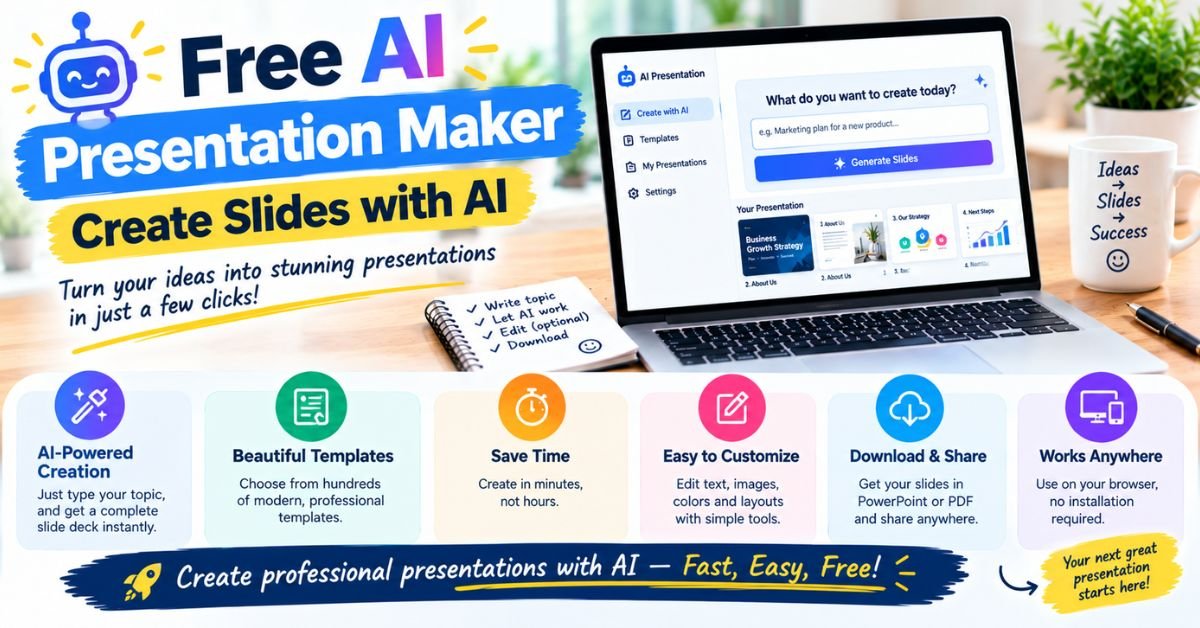
Free AI Presentation Maker: Create Slides with AI

Creating a professional presentation takes time. You need to organize your ideas, write clear content, choose a design, and make every slide easy to understand. Whether you’re preparing a school project, a classroom lesson, or a business pitch, the process can feel overwhelming. A free AI presentation maker can make this work much easier.
With the Slidesgo AI Presentation Maker, you can explore a faster way to turn a topic into a slide deck. Instead of building every slide from scratch, you can use AI to develop your ideas, organize information, and create a starting design. These AI-powered presentation tools can help you save time while giving you room to edit the final result.
The goal isn’t simply to create slides quickly. It’s to create a presentation that explains your message clearly and keeps your audience interested. In this guide, you’ll learn how an AI presentation generator works, how to use Slidesgo, which features matter most, and how to improve your slides before sharing them.
What Is a Free AI Presentation Maker?
A free AI presentation maker is an online tool that uses artificial intelligence to help you build presentations from written instructions, topics, or supported documents. You provide the basic information, and the tool helps organize it into slide titles, key points, and visual layouts. This process is known as text-to-presentation conversion. It can reduce the time you spend planning and formatting a presentation, especially when you need a first draft quickly.
Unlike traditional presentation software, an AI PPT maker can help with both content and design. A standard editor usually expects you to create the structure yourself, while an AI tool may suggest the order of your slides and the information each slide should contain. Some platforms also offer AI-generated slides, editable layouts, and ready-made themes. However, free access and export features vary between services. Always check the current terms before choosing a tool for an important project.
Read More: 25 Best Process Presentation Templates for Google Slides and PowerPoint
Turn Text into PowerPoint Presentations with AI
Imagine that you need to present a topic about renewable energy. You could spend an hour planning the sections and writing the first few slides. Alternatively, you could use text to PPT AI to generate an initial structure from a clear prompt. The tool might suggest slides about solar energy, wind power, environmental benefits, costs, and future developments. This presentation content generation process gives you a starting point that you can refine to match your purpose.
A capable AI PowerPoint generator can also help arrange headings, supporting points, and visual elements into a logical sequence. Some tools use natural language processing to interpret your instructions and identify the main ideas in your prompt. This doesn’t mean every generated statement will be correct. You should check facts, replace vague explanations, and add trustworthy sources when needed. Think of AI as a helpful assistant that prepares the first draft, not an expert that automatically guarantees a perfect presentation.
Edit and Customize AI-Generated Slides
The first draft rarely captures every detail you want to communicate. That’s why AI content editing and presentation layout customization matter. Depending on the platform and export options, you may be able to rewrite headings, shorten paragraphs, change slide order, adjust layouts, and personalize the design. These changes help turn a general AI-generated deck into a presentation that reflects your own knowledge and style.
For example, a slide filled with six long sentences may confuse your audience. You could replace those sentences with a clear heading, a short explanation, and a simple diagram. This approach makes editable AI presentations easier to read and discuss. Before presenting, check the font sizes, spacing, colors, and image quality. Good design isn’t about adding decorations everywhere. It’s about helping people understand your message without unnecessary distractions.
Choose a Presentation Template and Download Your Slides
A good template gives your presentation a consistent appearance. With customizable presentation templates, you can choose a visual style that suits your subject, from clean academic layouts to polished business designs. Some platforms also provide free Google Slides templates and free PowerPoint presentation maker features or resources. Check the licensing and pricing details before using any design, especially for commercial work.
Once you’ve finished editing, look for the available presentation export and download options. If the tool supports the PowerPoint file format (PPTX), you may be able to continue editing the deck in compatible presentation software. Some workflows also support Google Slides integration, although formatting can change when you move files between applications. Open the downloaded presentation and inspect every slide before sharing it. A quick review can catch missing images, awkward line breaks, or misplaced text.
How to Use the Slidesgo AI Presentation Maker

You don’t need professional design skills to start using the Slidesgo AI Presentation Maker. Visit the official AI Presentation Maker page, enter your topic, and explore the available generation settings. Slidesgo also supports uploading a document in PDF, DOCX, or TXT format, with a stated file-size limit of 25 MB. The current interface offers short, informative, and detailed presentation lengths. These options help you match the output to your subject and available presentation time.
The basic workflow follows four stages: provide your information, choose the settings, generate and review the slides, and download the finished deck. You need to sign in to generate and download presentations. The free plan also has limits, so check the latest terms before starting a large project. For best results, prepare a clear prompt and reliable source material first. A few minutes of planning can make the difference between a generic slide deck and a useful presentation.
Enter Your Topic or Upload a Document
Start with a specific topic rather than a vague request. For example, instead of entering “technology,” write, “Create a beginner-friendly presentation about how artificial intelligence helps small businesses. Explain three common uses, give practical examples, and discuss important risks.” This gives the AI presentation builder a clearer direction. It also supports topic-based slide generation by identifying the subject, audience, and purpose before the tool creates the first draft.
If you already have research or notes, upload a supported document when the option is available. This can help you generate slides from uploaded documents instead of copying every paragraph manually. A report might become a summary for a meeting, while class notes could become revision slides. This is a form of AI document summarization, where important points are extracted and reorganized for a presentation. Review the uploaded material before using it, and avoid submitting confidential information unless the service’s privacy terms meet your needs.
Choose the Presentation Length and Style
The length of your deck should match the amount of information you need to explain. Slidesgo currently presents three length options: Short, with approximately 7–9 slides; Informative, with 9–12 slides; and Detailed, with 12–16 slides. These ranges provide a useful starting point, although the final output may depend on the tool’s current settings
Next, choose a theme that suits your audience. A business proposal might need a clean layout with clear charts, while a classroom lesson could benefit from colorful diagrams and simple illustrations. This is where AI-powered slide design and presentation design automation can help. However, the most attractive theme isn’t always the best choice. Prioritize readability, contrast, and consistent formatting so your audience can follow the information without struggling to read each slide.
Generate and Edit Your AI Presentation
After entering your prompt and choosing the settings, generate your presentation. The automatic presentation generator creates an initial deck that you can review and refine. Start by checking the overall story. Does the opening explain the topic? Do the middle slides develop the main points? Does the ending leave the audience with a clear conclusion? A logical structure matters more than decorative effects.
Next, use the available editor to customize AI-generated slides. Rewrite broad statements, remove repeated ideas, correct factual mistakes, and add examples that suit your audience. This stage is important because AI-generated PowerPoint slides may include unsupported claims or wording that sounds too general. If the presentation contains statistics, check the original sources. If it includes recommendations, consider whether they fit your situation. AI can accelerate automated slide creation, but your judgment gives the final presentation its value.
Download and Share Your Presentation
Once the deck looks right, use the available download option to export it. Slidesgo’s official page states that users can download presentations in editable PPTX format. You can then open the file in compatible software, including Microsoft PowerPoint or Google Slides.
This makes the tool useful when you need to prepare a draft online but finish editing on your own computer.
Before sharing, inspect the downloaded file from beginning to end. Check that text fits within each slide, images appear correctly, and charts remain readable. If you plan to present from another device, test the file there as well. You can also share a PDF when viewers only need to read the slides, provided you export it using a supported application. Careful presentation export and download checks help prevent small formatting problems from becoming distractions during an important talk.
Read More: 7 Best Free Google Slides Templates Websites for 2026
Key Features of Slidesgo’s AI Presentation Maker

The main appeal of the Slidesgo AI Presentation Maker is its ability to combine content generation with presentation design. Rather than starting with a blank slide, you can give the tool a topic and receive a structured draft to edit. Its official page describes AI-generated content, editable slides, template selection, and PPTX downloads. These features can support students preparing assignments, teachers building lessons, and professionals creating reports or proposals.
Still, an online presentation maker should be judged by more than its speed. Consider the quality of its first draft, the amount of editing it allows, the designs available under the free plan, and the formats you can export. A tool that creates slides quickly may save little time if you must rebuild every layout afterward. The best workflow uses AI for repetitive tasks while leaving important decisions about accuracy, tone, and storytelling in human hands.
AI-Powered Text-to-Presentation Generation
The text to PPT AI feature helps turn a written topic into a draft slide deck. Instead of deciding every heading and section yourself, you can describe the presentation you want and let the system suggest an order. This is useful when you’re facing a blank page or need to turn a large topic into a manageable outline. An AI slide generator can help establish the basic structure before you add deeper explanations and evidence.
For stronger results, write prompts that explain the audience and desired outcome. “Explain online privacy” is broad, but “Create a 10-slide presentation about online privacy for parents, with practical safety tips and examples of common scams” gives clearer direction. The tool can then attempt presentation content generation around those needs. Even so, don’t assume every slide will contain complete or reliable information. Check the details, add missing context, and make sure the deck answers the question your audience actually cares about.
Customizable Content and Presentation Templates
A strong presentation needs a consistent design as well as useful information. Customizable presentation templates give you a visual foundation, while editing tools help you adjust text, layout, and theme choices. Slidesgo provides a range of presentation designs, but availability can differ between free and Premium collections. Check the current template terms before selecting a design for a project that has specific licensing needs.
Good AI presentation design also depends on what you leave out. One slide should usually communicate one central idea. A comparison may work best as a table, while a process may be easier to understand as a diagram. Use charts when numbers reveal a meaningful pattern, not simply to make a slide look technical. By combining presentation layout customization with concise writing, you can create engaging and visually appealing slides without crowding the screen with unnecessary details.
PowerPoint and Google Slides Compatibility
Compatibility matters when you need to edit a deck after generating it. Slidesgo states that its AI presentations can be downloaded as editable PPTX files and opened in PowerPoint, Google Slides, and Figma. This flexibility allows you to continue working in familiar software rather than remaining inside a single online editor.
However, an editable file doesn’t guarantee that every element will look identical in every application. Fonts may change, images may shift, and some effects may not transfer as expected. Open the exported deck in the software you plan to use and review the slides before presenting.
If your team works mainly in Google Slides, test the import and check whether collaborators can edit the content. Reliable Google Slides integration and a usable PowerPoint file format can make a tool much more practical for everyday work.
Who Can Benefit from a Free AI Presentation Maker?
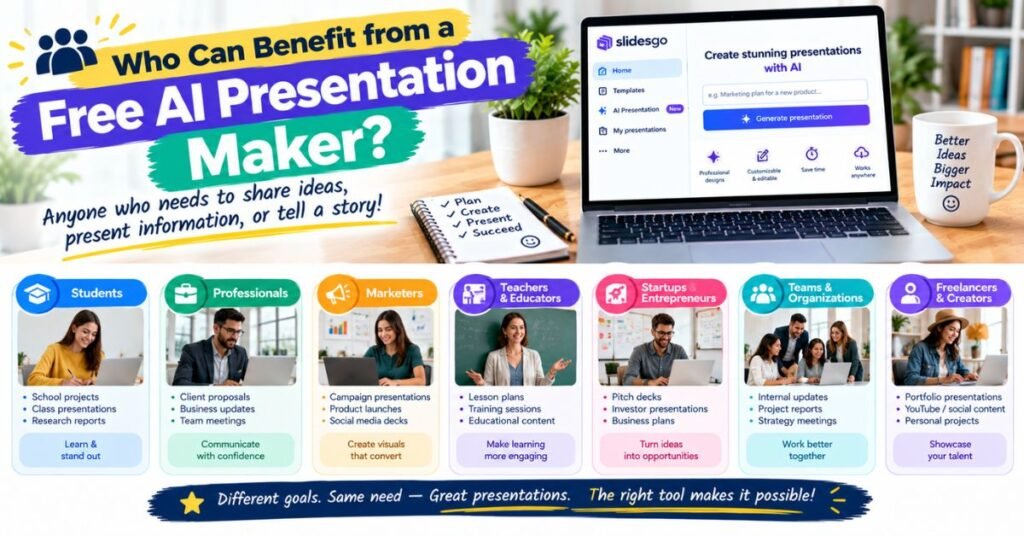
A free AI slide maker can help people who need to explain ideas clearly but don’t want to spend hours arranging slides. Teachers can prepare lesson materials, students can organize research, and professionals can create project updates or business proposals. The main advantage is a faster starting point. Instead of spending your first hour choosing layouts, you can focus on the information your audience needs to understand.
However, different users have different requirements. A student may need a simple deck for a class assignment, while a business team may need accurate figures, a consistent brand style, and secure handling of internal information. Before relying on an AI presentation creator, consider the free plan’s limits and the amount of editing required. The tool works best when you know what you want to communicate and use AI to help you get there.
AI Presentations for Teachers and Educators
Teachers often need to explain complex ideas in ways that students can understand. An AI presentation maker for teachers can help turn a lesson topic into an outline with definitions, examples, and review questions. For instance, a science teacher could create a presentation about the water cycle, with slides covering evaporation, condensation, precipitation, and collection. The teacher can then adapt the explanations to suit the students’ age and knowledge.
These educational presentation tools can also support lesson planning and classroom activities. Still, educators should check the accuracy of generated content and ensure examples match the curriculum. AI-generated diagrams may oversimplify a process, while generated explanations may leave out important context. A teacher’s subject knowledge remains essential. Used thoughtfully, AI-generated educational materials can reduce preparation time and leave more room for discussion, feedback, and individual support.
AI Slides for Students and Academic Projects
Students can use an AI presentation maker for students to organize research, plan a class talk, or create an initial structure for a group project. Suppose you’re preparing a presentation about plastic pollution. An AI tool might suggest sections about the sources of plastic waste, its environmental effects, recycling, and possible solutions. You can then add evidence from reliable reports and explain what the findings mean.
The important step is to use the tool as a study aid, not a substitute for learning. Check every factual claim, cite your sources, and follow your school’s or university’s rules on AI use. If your assignment requires original analysis, make sure the final deck reflects your own thinking. A good presentation outline generator helps you organize your ideas, but you still need to understand the topic well enough to answer questions from your audience.
Business Presentations for Professionals and Teams
In business, clear communication can save time and help teams make better decisions. AI presentation tools for businesses can support project updates, sales pitches, training sessions, marketing plans, and internal reports. For example, a project manager might use AI to organize progress notes into sections covering completed work, current risks, upcoming deadlines, and decisions that need approval. The manager can then add accurate figures and company-specific context.
A business presentation software workflow must also protect sensitive information. Avoid uploading private customer details, financial records, or internal strategy documents unless your organization has approved the service and its data-handling terms. Review forecasts and performance figures carefully before sharing them. AI can help organize information, but it shouldn’t make business decisions for you. The strongest presentations combine efficient drafting with verified evidence and a clear understanding of the audience.
Slidesgo AI Presentation Maker: Key Statistics
Slidesgo’s official AI presentation page highlights figures related to generated presentations, platform users, and presentation templates. These numbers can help readers understand the scale of the service, but they need careful interpretation. A large user base doesn’t automatically prove that a tool produces better slides than its competitors. Likewise, a large template library doesn’t mean every design is available for free.
The figures shown in the supplied page content include more than four million presentations generated, over 70 million presentation creators, and more than 400 free templates. However, Slidesgo’s current page also refers to 800-plus professional template designs and describes a separate collection of 150-plus free templates in its FAQ. These figures may refer to different collections or page versions. Check the official Slidesgo AI Presentation Maker page before publishing statistics as current facts.
| Reported figure | What it represents | What to check |
| 4M+ | Presentations generated | Whether the figure has been updated |
| 70M+ | Presentation creators | Whether this counts platform-wide users |
| 400+ | Free templates in the supplied content | Current free-template availability |
| 800+ | Professional template designs advertised on the page | Whether designs require a Premium plan |
Over 4 Million Presentations Generated
The reported figure of 4 million-plus generated presentations suggests that users have turned to Slidesgo for AI-assisted slide creation. This matters because creating a presentation often involves several tasks: planning the structure, writing content, choosing a design, and checking the final deck. An automatic presentation generator aims to reduce the time needed for those early steps. Instead of facing a blank page, users can start with a draft and improve it.
However, the number of generated presentations doesn’t tell you how many were completed successfully or how satisfied users felt afterward. It also doesn’t measure the accuracy of the generated information. When evaluating an AI presentation generator, consider how well it handles your topic, how much control it gives you, and whether the downloaded slides meet your needs. Practical results matter more than impressive numbers alone.
More Than 70 Million Presentation Creators
Slidesgo reports more than 70 million presentation creators on its platform. A figure of this size points to broad interest in presentation resources among people who need to communicate ideas visually. Teachers may use templates for classroom lessons, while students can adapt them for assignments. Professionals can also use presentation resources to organize meetings, proposals, and training sessions.
It’s important to distinguish platform users from users of the AI feature itself. The total audience may include people who use traditional templates rather than the AI generator. Therefore, this statistic shouldn’t be treated as proof that 70 million people use the Slidesgo AI Presentation Maker. Readers should consider the figure as platform-wide context and verify its latest definition on the official website.
Over 400 Free Presentation Templates
The supplied page content reports more than 400 free presentation templates, while the current AI page advertises 800-plus professional designs and separately mentions 150-plus free templates. Because these figures aren’t identical, it’s best to check the current collection rather than assume every advertised design is free. The distinction matters if you’re searching for a free AI slide generator with templates and want to avoid unexpected restrictions.
Templates are useful because they give your slides a consistent visual style. You might choose a business theme for a sales pitch, a simple academic layout for research, or an illustrated design for a classroom lesson. Still, choose a template based on readability and purpose. A clean design with clear headings often works better than a crowded layout full of decorative elements. Before using a template commercially, check its licensing terms and any attribution requirements.
Explore More Free AI Tools from Slidesgo
Presentation creation is only one part of preparing a lesson, report, or training session. Slidesgo also lists tools for tasks such as converting PDFs into presentations, generating lesson plans, and creating classroom activities. These AI productivity tools can help users move from raw information to materials they can teach, discuss, or present. Explore the Slidesgo AI tools collection to see which options are currently available.
The right tool depends on what you already have and what you need to produce. If you have a long report, a document converter may help you build a slide outline. If you’re preparing a lesson, an educational generator may help with activities and questions. These tools can save time, but you should still review their output for accuracy, suitability, and clarity. Treat generated materials as drafts that need a final human check.
AI PDF to PowerPoint Converter
A PDF to PowerPoint converter can help turn information from a document into an editable presentation. This is useful when you have a report, a research summary, or a collection of notes that you need to explain to an audience. Rather than manually rebuilding every section, you can use an AI document to presentation converter to extract key information and organize it into slides. Slidesgo provides a dedicated AI PDF to PPT converter for this purpose.
Conversion quality depends on the source document. A clean PDF with clear headings may be easier to process than a scanned document with blurry text or complex tables. After conversion, check figures, headings, charts, and references.
Make sure the slides preserve the meaning of the original report rather than simply shortening its paragraphs. This is particularly important when you use AI PDF-to-PPT conversion for research, financial information, or other material where small errors can change the message.
AI Lesson Plan Generator
An AI lesson plan generator can help educators organize a lesson around specific learning goals. You might enter a subject, grade level, and topic, then use the generated plan as a starting point for activities, explanations, and assessment ideas. For example, a lesson about ecosystems could include a short introduction, a food-chain diagram, a classroom discussion, and a knowledge check. Teachers can then adapt the plan to their curriculum and students’ needs.
This type of tool can also support an AI presentation maker for teachers by helping connect the lesson plan to the slide deck. The lesson plan establishes what students should learn, while the presentation explains the topic in a visual format. However, teachers should review all suggested activities and facts before using them. The final materials should suit the students’ age, learning level, available resources, and classroom environment.
AI Quiz Maker
An AI quiz generator can help create draft questions from a reading passage, lesson topic, or study guide. For example, after preparing a presentation about climate change, a teacher could generate questions about greenhouse gases, rising temperatures, and possible responses. Students could then use the questions to review the main concepts. Depending on the tool, the output may include multiple-choice questions, short-answer questions, or other formats.
A useful quiz tests understanding rather than merely asking students to repeat words from the slides. Check each question for clarity, confirm that the answer is correct, and remove questions that could have several reasonable interpretations. When using an AI-generated quiz for formal assessment, make sure the questions match the learning goals and the expected level of difficulty. AI can help prepare the material, but educators remain responsible for its quality.
AI Icebreaker Generator
An AI Icebreaker Generator can suggest short activities that help people start conversations in classrooms, workshops, and team meetings. For example, a teacher might ask students to share one surprising fact about a science topic, while a business team could discuss one skill they’d like to develop. These activities can make a session feel more welcoming before the main presentation begins.
Choose activities that suit the audience and available time. A quick question may work well for a large online meeting, while a small-group task might suit an in-person workshop. Avoid activities that pressure people to share private information or disclose personal experiences. When used thoughtfully, icebreakers can encourage participation and help the audience feel more comfortable engaging with the presentation.
A Practical Example: Creating a Presentation with AI
Consider a university student who needs to prepare a presentation about renewable energy for a ten-minute class talk. The student has research notes, a few statistics, and several sources but doesn’t know how to organize them. Instead of creating each slide manually, the student uses a free
AI presentation maker to develop a first draft. The prompt specifies the audience, the subject, the desired length, and the main points to cover. The tool creates a starting structure that the student can review and improve.
The student then checks the statistics against reliable sources, rewrites unclear explanations, and replaces generic examples with information from the research. A simple comparison table helps explain the differences between solar and wind energy. A final slide summarizes the main findings and lists the sources.
This example shows how presentation automation tools can speed up the preparation process without removing the need for research. The AI handles some repetitive work, while the student remains responsible for accuracy, analysis, and the final message.
“Use AI to speed up the process, not to skip the thinking.”
The same principle applies to teachers, freelancers, and business teams. A presentation becomes useful when it combines clear content, reliable evidence, and a design that supports the message.
Frequently Asked Questions
What Is a Free AI Presentation Maker?
A free AI presentation maker is an online tool that uses artificial intelligence to help create slide decks from prompts, topics, or supported documents. It can suggest headings, organize information, and apply presentation layouts. Some services offer free access with monthly limits, while others restrict downloads, templates, or advanced editing features. Check the plan details before starting your project.
Is Slidesgo’s AI Presentation Maker Free to Use?
Yes, Slidesgo advertises a free option for its AI presentation tool. Its current page states that users can create up to three AI-generated presentations each month, while additional presentations and certain advanced features require Premium access. The free option also requires an account. Because these terms can change, confirm the latest limits on the official Slidesgo page.
Do You Need to Register to Create AI Presentations?
Yes. Slidesgo’s current AI presentation page states that you need to sign in to generate and download presentations. You can explore the available options before beginning, but you should create an account when the tool requests one. Review the current account terms and privacy information before uploading personal or work documents.
Can You Edit an AI-Generated Presentation?
Yes. Slidesgo describes its generated presentations as customizable, allowing users to refine content and adjust available design elements before downloading. You can improve headings, shorten text, and make the deck more suitable for your audience. If you download a PPTX file, you can also continue editing it in compatible presentation software.
Can You Add Your Own Images to AI-Generated Slides?
Image-upload options depend on the tool and its current features. Slidesgo’s official AI presentation page and related guidance may change as the product develops, so check the current editor before planning your workflow. If you can’t upload your own images directly, you may be able to add them later in compatible presentation software. Always use images you own or have permission to use.
How Do You Write a Good AI Presentation Prompt?
A good prompt explains the topic, audience, purpose, tone, and main points. For example, “Create a beginner-friendly presentation about cybersecurity for small businesses. Explain common threats, provide practical safety tips, and end with a short checklist.” This gives the AI presentation generator useful direction. You can also specify the desired slide count and visual style when the tool supports those settings.
Final Thoughts
A free AI presentation maker can make slide creation faster and less stressful. Whether you’re a student preparing an assignment, a teacher building lesson materials, or a professional developing a business proposal, AI can help you move from a blank page to a workable first draft.
The Slidesgo AI Presentation Maker offers topic-based generation, customizable slides, presentation templates, and editable PPTX downloads, subject to its current features and plan limits.
The key is to use the technology thoughtfully. Start with a clear prompt, choose a design that suits your audience, and review every slide before sharing it. Check important facts, improve weak explanations, and make sure the final deck communicates your ideas clearly.
With the right balance of AI-powered presentation tools and human judgment, you can save time on design and focus more on what matters: delivering a message your audience will understand and remember.

StyleXMag Editorial Team shares the latest haircut and hairstyle ideas, from modern fades and comb overs to curly, long, slick-back, and face-shape styles. Our goal is to make finding your next look simple, useful, and inspiring.