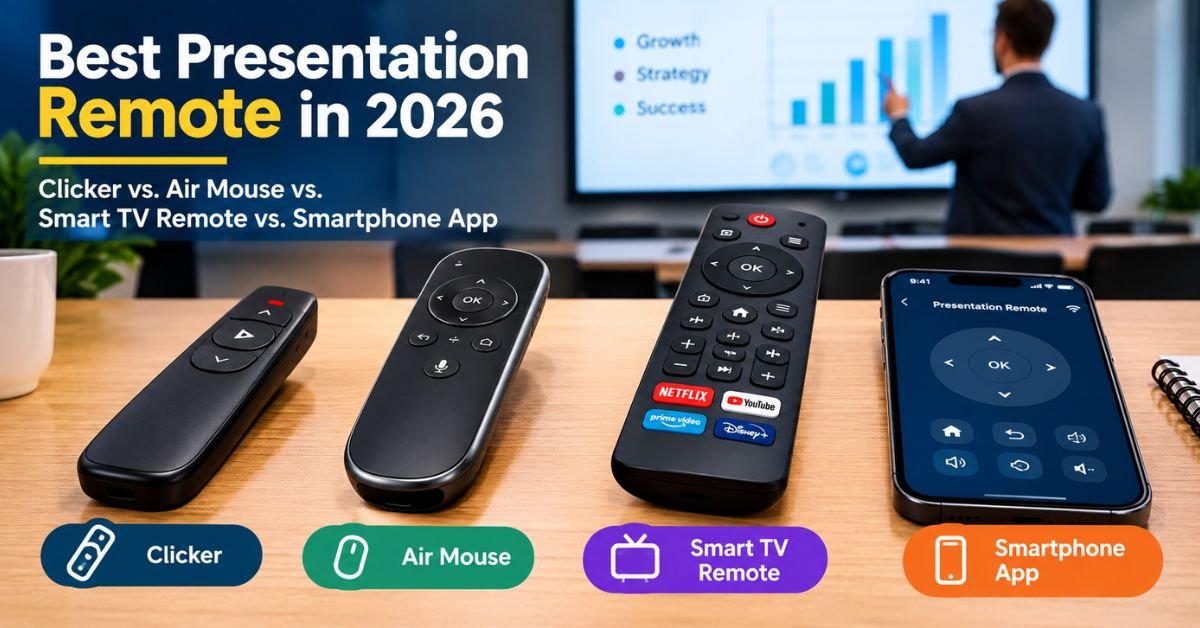
Best Presentation Remote in 2026: Clicker vs. Air Mouse vs. Smart TV Remote vs. Smartphone App

You walk on stage. Your slides look great. Then you freeze behind the laptop, tapping the arrow key like a pianist stuck on one note. Sound familiar?
A good remote fixes that. It sets you free. It also makes you look calm and in control. Slides today animate, zoom, and link to other files. Yet many people still use the same basic gadget they bought years ago. So which gadget is the best presentation remote in 2026? This guide compares four types in plain English. You’ll see what each one does well, where each one fails, and which one fits your talks.
Best Presentation Remote in 2026?
A presentation remote control is a small handheld device. It lets you move through your slides without touching the computer. Most models send a signal to a USB receiver in your laptop. Some use Bluetooth pairing instead. Either way, you can walk around the room and still run the show.
Why does this matter? Eye contact builds trust. When you stand beside your laptop, you look at the screen more than the crowd. A wireless presenter gives you that freedom back. It works as a remote for advancing presentation slides, and it can also blank the screen when you want everyone’s focus on you. Think of it as a leash cut in half. You still hold the story, but you no longer sit tied to the desk.
Read More: QuikConsole.com: Features, Benefits, and How the Platform Works
Types of Presentation Remotes
Four main types exist today. The first is the classic presentation clicker. The second is the air mouse remote. The third is a slim smart TV remote control that works like an air mouse. The fourth is a smartphone presentation remote app. Each type solves a different problem, so the best choice depends on your talk style and not on a brand name.
Here’s a quick overview before we dig in. Notice how cursor control splits the group in two. Clickers and most phone apps keep things simple. Air mice and TV-style remotes add more power.
| Type | Cursor control | Typical power source | Best for |
| Presentation clicker | No | AAA batteries | Simple, linear talks |
| Air mouse | Yes | AAA or rechargeable | Desk mouse plus remote |
| Smart TV-style remote | Yes | Rechargeable or AAA | Interactive talks |
| Smartphone app | Limited | Your phone | Travel without extra gear |
Presentation Clicker
The presentation clicker is the simplest tool in this list. Take the Kensington Wireless Presenter as the benchmark. It has next and previous slide buttons plus a hide button. It uses a USB receiver and a 2.4GHz radio frequency (RF) link. Older models list a 60-foot range, while newer ones claim about 65 feet.
It also offers a plug-and-play setup, which means no drivers and no stress. The catch is control. You can’t point at items on screen or open a link without leaving the show. Still, this makes it the best clicker for PowerPoint if your slides run in a straight line. A USB presentation clicker like this one also stays an affordable presentation clicker compared with fancier options.
Air Mouse
An air mouse remote looks like a normal mouse. Lift it, and it reads your hand movement through the air. This uses motion sensor technology with gyroscope-based cursor control. Gyration is the well-known brand here. Its Air Mouse Mobile works as both a laptop mouse and a presentation remote. It also offers assignable buttons and gesture control through downloadable software.
Some Gyration models claim a range of up to 100 feet. That makes an air mouse for presentations a great pick when you want cursor control and slide navigation in one device. The shape feels odd at first, so practice before showtime. Also, many Gyration models now show as out of stock, so check availability first.
Smart TV Remote
Smart TVs created a clever gadget. It’s a slim handheld that moves your cursor like an air mouse. When you flip it over, many models reveal a small keyboard. That keyboard lets you type a slide number and jump straight there. This makes a smart TV remote for slideshow control surprisingly handy.
However, a standard infrared TV remote can’t do this job. You need an air-remote style unit that comes with a USB dongle. This article couldn’t confirm specific models, so verify any product before you buy. Also check smart TV compatibility if you plan to use it on a big screen, since not every device pairs with every display.
Smartphone Presentation Remote App
Your phone already sits in your pocket. So a smartphone presentation remote app feels like a free upgrade. Apps connect over Bluetooth or Wi-Fi. They use touchscreen controls instead of buttons. Many also show speaker notes and a next-slide preview. You can control slides from a mobile phone and even use it as a smartphone as a PowerPoint controller.
Microsoft once offered Office Remote for this purpose. It launched on Windows Phone in 2013 and later arrived on Android. However, one download page says the Android app is no longer available. So test any current app well before your talk.
Read More: Thealite Keep Safe Review: 7 Honest Facts You Should Know
Presentation Clicker vs. Air Mouse vs. Smart TV Remote vs. Smartphone App
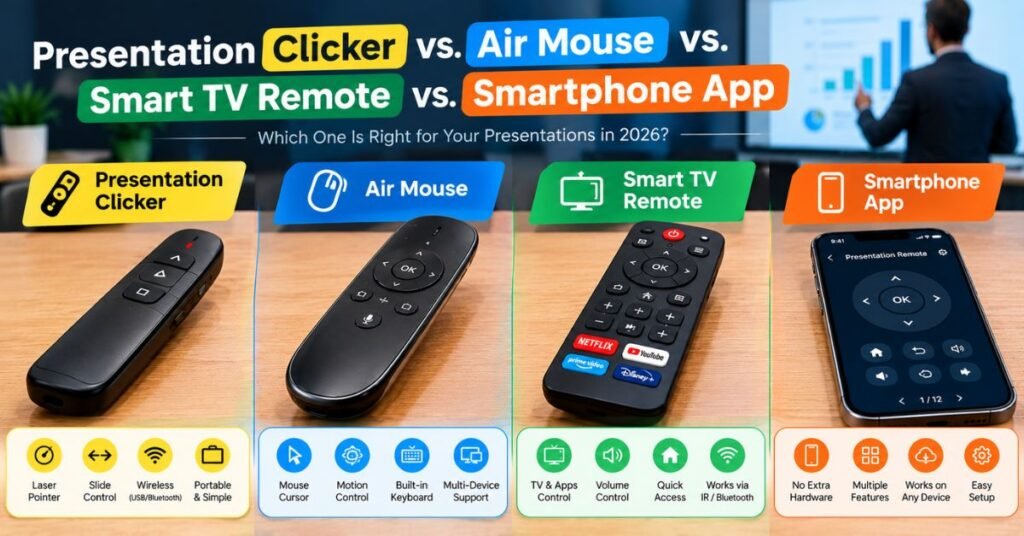
Let’s put all four side by side. The table below covers the traits that matter most. Read across each row, and you’ll spot the trade-offs fast. You’ll also see why the debate of presentation clicker vs air mouse never ends. One device wins on simplicity. The other wins on power.
Think of it like choosing a vehicle. A clicker is a bicycle: light, cheap, and easy. An air mouse is a motorbike: faster, but you need practice. A phone app is a rental scooter: handy, yet not always reliable. Meanwhile, the smart TV remote versus air mouse question comes down to shape. Many people find the TV-style body more natural to hold. The mouse shape, however, doubles as a desk mouse.
| Feature | Clicker | Air mouse | Smart TV-style remote | Phone app |
| Cursor control | No | Yes | Yes | Limited |
| Interactive decks | No | Yes | Yes | Limited |
| Learning curve | Very low | Medium | Medium | Medium |
| Typical range | About 60 to 65 ft | Up to 100 ft on some models | Varies by model | Depends on Bluetooth or Wi-Fi |
| Main drawback | Few features | Odd shape; patchy stock | Crowded keys on some models | Eyes on screen; legacy apps |
A phone also raises a classic debate: wireless presenter versus smartphone app. The wireless presenter has real buttons. Your thumb finds them without looking. The app has glass. Your eyes must check each tap. Therefore, the clicker wins on trust, while the app wins on convenience.
Which Is the Best Presentation Remote?
The honest answer is simple. It depends on how you present. Still, you can pick winners by use case. For plain talks, a clicker wins. For interactive talks, a TV-style air remote or air mouse wins. For travelers with tight luggage, a phone app can work, though you should test it first.
Here’s a quick ranking of picks by scenario. Treat it as a starting point and not a final law. Always rehearse with the device you choose.
| Your situation | Pick |
| Straight, linear slides | Presentation clicker |
| Links, pen tools, jumping around | Air mouse or smart TV-style remote |
| One device for desk and stage | Air mouse |
| No extra gear in your bag | Smartphone app (test first) |
A simple rule: the more you leave your slide order, the more cursor control you need.
How to Choose the Right Presentation Remote
Buying a remote shouldn’t feel like guesswork. This presentation remote buying guide walks you through five checks. Start with software and system support. Then look at range, power, comfort, and price. Next, compare the presentation remote features and benefits that match your own talks. A feature you never use is wasted money.
Also, think about where you’ll present most. A small office needs less range than a theater. A classroom needs rugged buttons. A boardroom needs a quiet, polished look. If you’re unsure, borrow a friend’s device and try it in your real room. Five minutes of testing can save you from an awkward moment later.
Compatibility With Presentation Software
First, check presentation software compatibility. Most remotes support Microsoft PowerPoint and Apple Keynote. The Kensington manual, for example, lists both. Next, think about Google Slides. Many clickers act like a keyboard, so a remote for Google Slides usually works. Still, test it first, because setups differ.
Also confirm operating system compatibility. Look for Windows and macOS support. That matters for a presentation remote for MacBook and any presentation remote for laptops. If you use a phone app, check Android and iOS support too. A PowerPoint presentation remote that ignores your system is useless, so verify before you buy.
Wireless Range and Connectivity
Next, look at wireless connectivity. RF models use a USB receiver and a stable 2.4GHz link. A Bluetooth presentation remote skips the receiver, which frees a USB port. However, Bluetooth needs pairing, and that can fail on a busy laptop. The wireless operating range matters too. Clickers near 60 to 65 feet suit most rooms.
A long-range presentation remote suits large halls. For a presentation remote for large audiences, pick a longer range and test it from the back row. Walls and crowds can shrink the real distance.
Battery Life and Charging
Power is easy to forget until it dies. Basic clickers run on AAA cells. Kensington’s manual says the batteries should last up to a year with average use. Still, many people prefer a rechargeable presentation remote with a rechargeable battery.
It saves money over time. It also keeps you from hunting for spares. Look for a power switch or auto-sleep mode to protect battery life. Storing the receiver inside the body can act as an off switch on some models. Keep a pair of spare AAAs in your bag anyway.
Ease of Use and Portability
Comfort shapes your confidence. A good device fits your hand and hides in your pocket. Look for large, well-spaced buttons. Crowded keys cause wrong presses, especially in the dark. An easy-to-use slideshow controller should need no training.
For a presenter remote for meetings, a slim shape works best. Also check weight and size. A bulky device annoys you on long trips. Test the grip while standing, because a remote feels different on stage than at a desk.
Price and Value for Money
Price tells only half the story. A cheap clicker is great if you never use extra features. A pricier air mouse pays off if you click links every week. Think about cost per use. Include professional presentation tools in your budget only when they add real value.
Prices change often, so compare current listings from trusted stores. Don’t pay for a laser pointer if your venue bans lasers. Likewise, skip fancy software if you only need to flip slides.
Real-World Examples: Who Needs Which Remote?
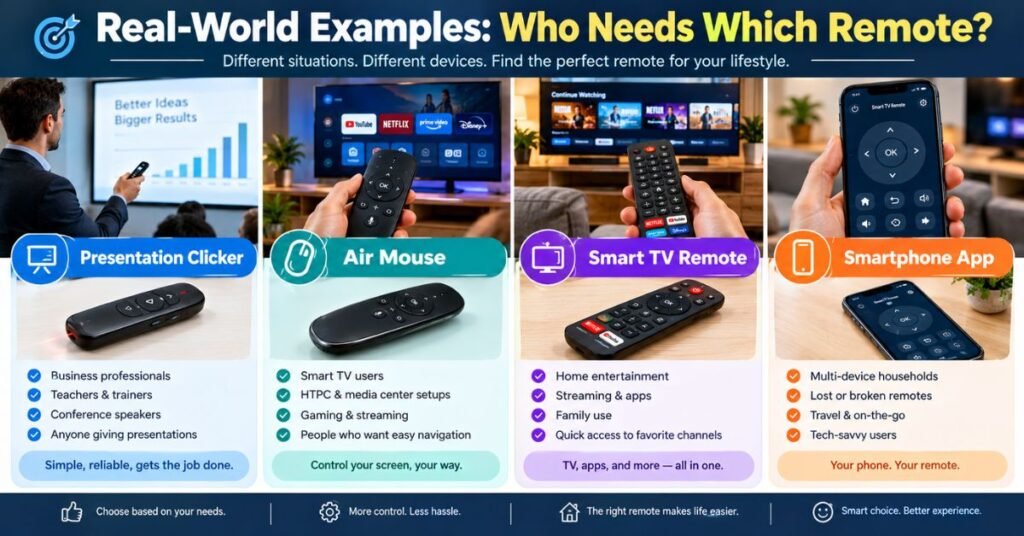
Different jobs call for different tools. Below are three illustrative scenarios built from common use patterns. They aren’t reports of real people. They simply show how the choice plays out. Notice how the best pick changes with the setting.
A teacher walks between desks all day. She needs a presentation remote for teachers with a long range and tough buttons. A presentation remote for classrooms also needs a simple layout, since students may bump the device.
A basic wireless presentation remote fits well. A sales lead, on the other hand, jumps between a deck and a demo. A presentation remote for business meetings with cursor control makes sense. An air mouse remote lets her open a web page without touching the laptop. Finally, a conference organizer needs reliability above all. A presentation remote for conference rooms should pair fast and last all day. A best wireless presenter for business use case often points to a trusted clicker with a strong receiver.
Tips for Using Any Remote Like a Pro
Gear matters, yet habits matter more. First, rehearse with the exact device. Learn where each button sits without looking. Second, pair or plug in early. Don’t wait until the audience arrives. Third, carry a backup. A spare clicker costs little and saves a lot.
Also, practice remote presentation management for online talks. For online events, you may share your screen through screen mirroring or a video call. In that case, test your remote with the shared window.
The best remote for online presentations still works only if the slides respond. Finally, mind your laser pointer. A presentation remote with laser pointer helps in big rooms. However, a presentation pointer can distract if you wave it too much. Use short, steady highlights.
Frequently Asked Questions
What Is the Best Remote for PowerPoint Presentations?
The best presentation remote for PowerPoint is the one that matches your style. For simple decks, a PowerPoint clicker for presentations with next and previous slide buttons works well. For interactive decks, an air mouse or a smart TV-style remote adds cursor control. Always check your software and operating system first. Then test the range in your real room.
Can You Use Your Smartphone as a Presentation Remote?
Yes, but with limits. People often ask, “can I use my phone as a presentation remote?” Apps let you control slides from a mobile phone through Bluetooth or Wi-Fi. Some show notes and previews. However, touchscreens force you to look down, and stray taps can skip a slide. Also, older apps like Office Remote are now legacy tools. Test any app before you rely on it.
What Is the Difference Between an Air Mouse and a Presentation Clicker?
An air mouse senses motion and moves the cursor. A presentation clicker only sends slide commands. So an air mouse for presentations gives you cursor control and lets you open links, draw with a pen tool, or jump around. A clicker keeps things simple. It costs less, and it’s harder to mess up. In short, the air mouse offers presentation flexibility, while the clicker offers calm.
Can a Smart TV Remote Control a Presentation?
Sometimes. A standard infrared remote can’t. However, air-remote style devices with a USB receiver can control your cursor and slides. Many also include multimedia controls for volume and playback. Confirm smart TV compatibility and computer support before buying. Treat this as a smart TV remote for slideshow control only when the box lists those features.
Final Verdict
Let’s wrap this up. If your slides run in a straight line, buy a reliable clicker. It’s simple, and it works. If you jump around, click links, or answer live questions, pick an air mouse or a smart TV-style air remote. Use a phone app only when you travel light and have time to test it. Overall, the best presentation remote in 2026 is the one you can use without thinking.
Before your next talk, do three things. Test the range in the real room. Pack spare batteries or a charger. Keep a backup clicker in your bag. Do that, and you’ll give your audience your full attention. After all, a great remote disappears in your hand and leaves the spotlight on you.

StyleXMag Editorial Team shares the latest haircut and hairstyle ideas, from modern fades and comb overs to curly, long, slick-back, and face-shape styles. Our goal is to make finding your next look simple, useful, and inspiring.